
Generate alt text automatically
Overview
SmartAlt can generate missing alt text automatically in the background. You can turn automation on from the Settings screen and choose when SmartAlt should run.
In Shopify admin, open Apps → SmartAlt - AI Alt Text → Settings.
Use automation when you want SmartAlt to handle missing alt text without starting a manual run from the Generate Alt Text screen.
Turn on automation
In Shopify admin, go to Apps → SmartAlt - AI Alt Text, then click Settings in the left navigation.
On the Settings page, find the Automation section.
In Automation, select one of these options:
Full auto mode (processes all images with missing alt text) — scans your store and generates alt text for images that do not already have alt text.
Creating a Product — generates alt text when you create a new product.
Creating / Updating a Collection — generates alt text when you create or update a collection.
After selecting the options you want, click Save at the top of the page.
Your automation preferences will be applied after saving.
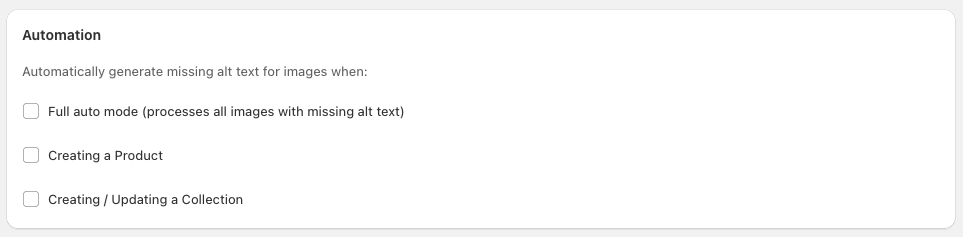
What each automation option does
Full auto mode
Choose Full auto mode (processes all images with missing alt text) if you want SmartAlt to work through your store’s existing images that are still missing alt text.
Creating a Product
Choose Creating a Product if you want alt text generated as part of your new product workflow.
Creating / Updating a Collection
Choose Creating / Updating a Collection if you want SmartAlt to run when a product is added to a collection. Alt text will be generated at a product level as long as the product images do not already have alt text.
How automation fits with manual generation
Automation handles generation for the events you enable in Settings. If you ever want to run alt text generation yourself, you can still use Generate Alt Text from the SmartAlt menu to review media and start a manual run.
Use the Generate Alt Text screen to select images and run alt text generation on demand.
Use Specific metafields in Settings to guide what SmartAlt includes in generated alt text.
Filter products in Shopify first, then use Manage with SmartAlt for a targeted run.