
Generate alt text manually
Overview
If you want to update product image alt text manually in SmartAlt, use the Generate Alt Text screen inside the app. This lets you choose all listed images or only specific ones, then generate alt text in bulk.
In Shopify admin, open Apps → SmartAlt - AI Alt Text → Generate Alt Text.
Generate alt text from the app menu
In the left navigation, go to Apps → SmartAlt - AI Alt Text and click Generate Alt Text.
You’ll land on a page titled Generate Alt Text showing your store media in a list.
On the Generate Alt Text page, each row shows an image thumbnail and its Current Alt Text. Use the View button on the right if you want to inspect an individual item before generating new text.
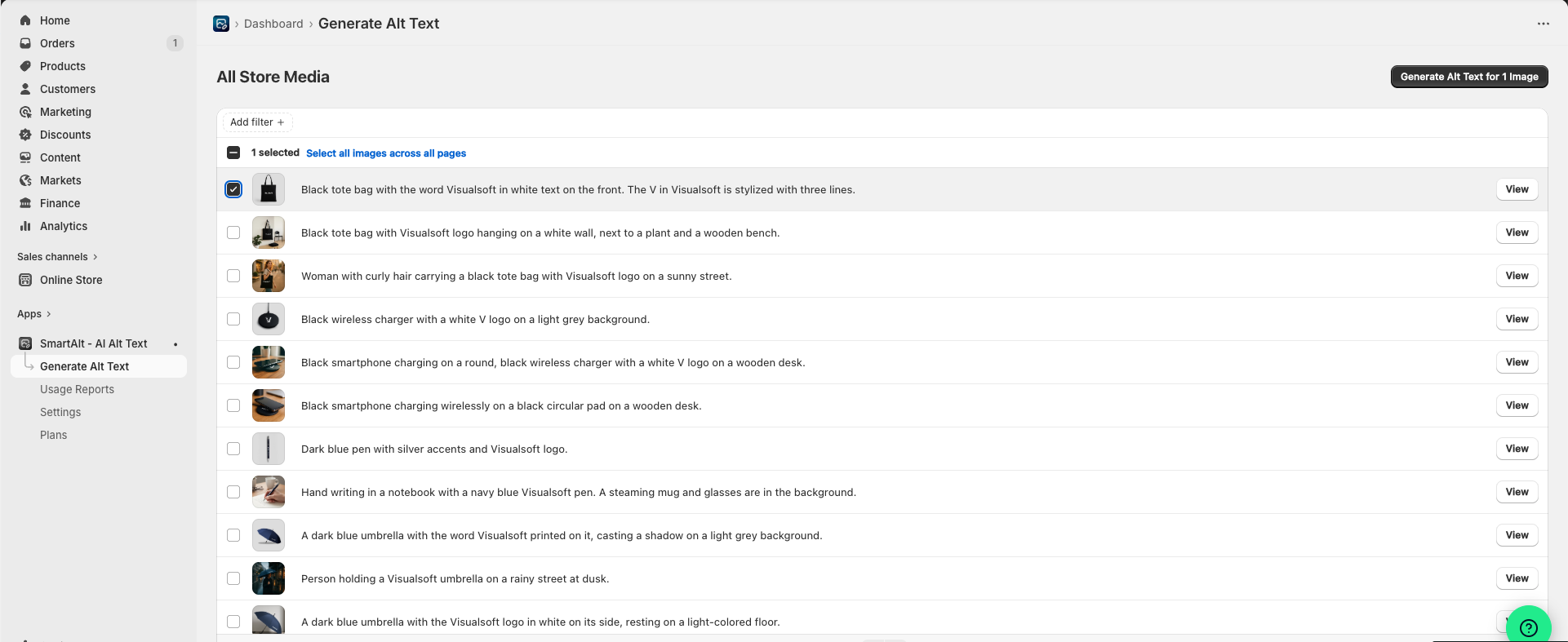
Tick the checkbox beside each image you want to update.
To update individual items, tick only those rows.
To update everything currently listed, use the top checkbox to select all visible rows.
If SmartAlt shows the link Select all images across all pages, click it to include the full result set instead of only the current page.
After making your selection, click Generate Alt Text in the top-right corner. The button label may show the number of selected images, such as Generate Alt Text for 1 Image.
When generation finishes, review the list again to confirm the Current Alt Text has been updated for the selected images. You can use View on any row to inspect individual results.
What to expect on this screen
All Store Media shows the images SmartAlt can process.
Add filter + helps narrow the list before you select images. From this menu you can select images without an existing alt tag.
Current Alt Text shows the existing or newly generated alt text for each image.
View opens the item so you can review it more closely.
If you only want to update a small set of products, select individual rows instead of running generation for the full list.
When to use this method
This manual workflow is useful when you want to:
update alt text for a specific group of images,
review existing alt text before regenerating it,
run alt text generation on demand instead of relying on automation.
Related workflows
Filter products in Shopify first, then send the right selection to SmartAlt with Manage with SmartAlt.
Use Specific metafields in Settings to control which product details SmartAlt uses in generated alt text.