
See Usage Reports
Overview
The Usage Reports screen gives you a request-by-request history of work completed in SmartAlt. You can use it to confirm when a request ran, how many images were processed, where the request was generated from, and whether it finished successfully. This can be useful when tracking your usage for your selected plan.
If you need to know which products were included in a specific request, use View Items. This opens a detailed list showing each product image in the request, the AI Generated Alt Text, and the item-level Status.
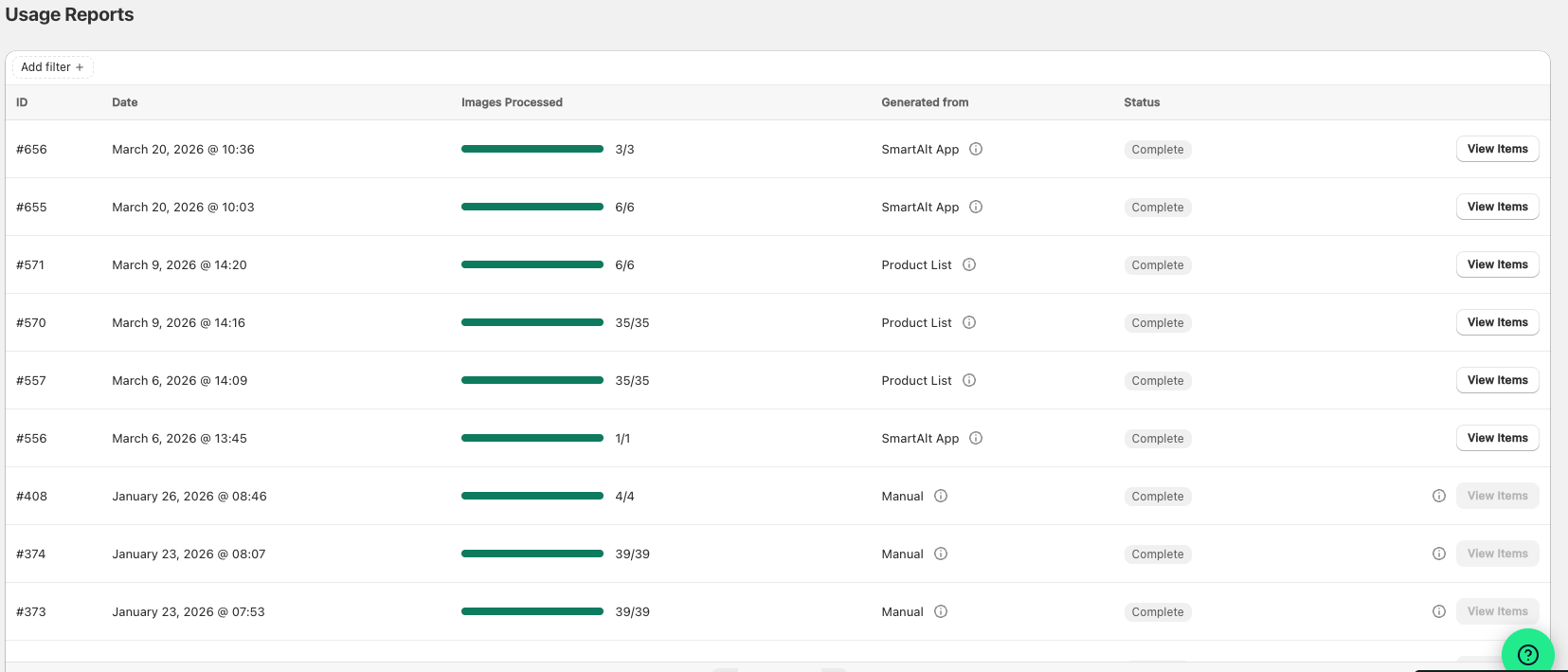
What you can see in Usage Reports
Each row in Usage Reports represents one SmartAlt request. The table includes the following columns:
ID: The request number for that run.
Date: When the request was created.
Images Processed: How many images were included and processed in that request.
Generated from: Where the request started, such as SmartAlt App, Product List, or Manual.
Status: The overall result of the request, such as Complete.
If a request includes a View Items button, you can open it to review the products and alt text generated for that run.
See which products were included in a request
Go to the Usage Reports screen in SmartAlt.
Review the table by Date, ID, Generated from, or Status to locate the request.
Click View Items on the right side of the request row.
On the request details screen, review each image, the AI Generated Alt Text, and the item-level Status.
What appears in View Items
When you open a request, the details page shows the individual items included in that request. This view helps you confirm exactly which products were processed and what SmartAlt generated for each one.
On this screen, you can review:
Image: A thumbnail preview of the product media item.
AI Generated Alt Text: The alt text SmartAlt created for that image.
Status: The result for that individual item, such as Successful.
View: Opens the media item so you can inspect it in more detail.
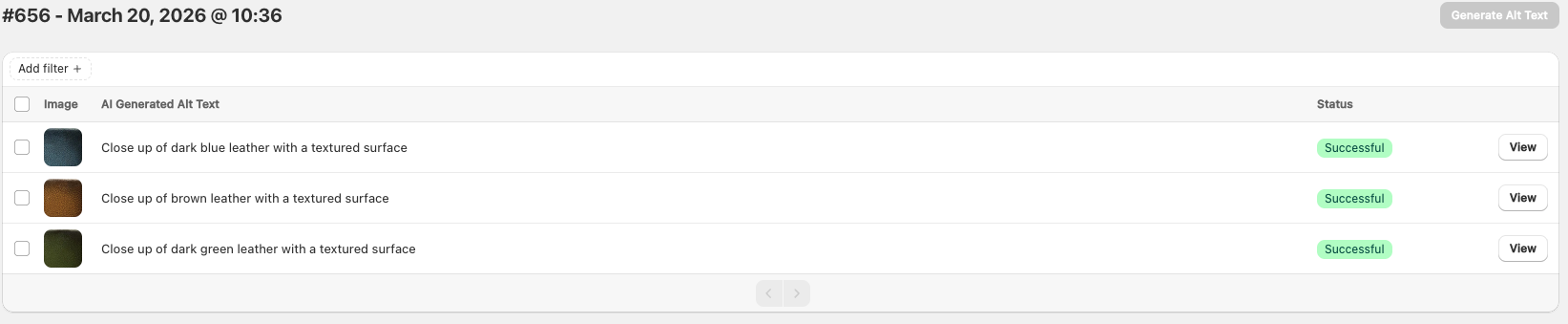
Use the View button for item-level detail
Click View next to an item to open that media item individually. This is useful when you want to compare the generated alt text against the specific image, or verify the outcome for one product without reviewing the entire request.
Use Usage Reports when a customer asks, “Which products were included in that SmartAlt run?” It is the quickest place to confirm both the request summary and the exact item list.
Filter the request list
The Usage Reports screen includes an Add filter + option at the top of the page. Use this when you need to narrow the list before opening a request.
This can be helpful if you are looking for a specific request based on when it ran or when you want to focus on a smaller set of report entries.