
How to control alt text with Metafields
Overview
At this time, SmartAlt doesn’t offer a “suppress these words only for certain product types” setting (for example, hiding specific terms for mugs but keeping them for hats). The recommended workaround is to control what SmartAlt is allowed to use by providing product-type-specific wording in Shopify metafields, then telling SmartAlt to use those metafields via Specific metafields in Settings.
1) Start from the SmartAlt Dashboard
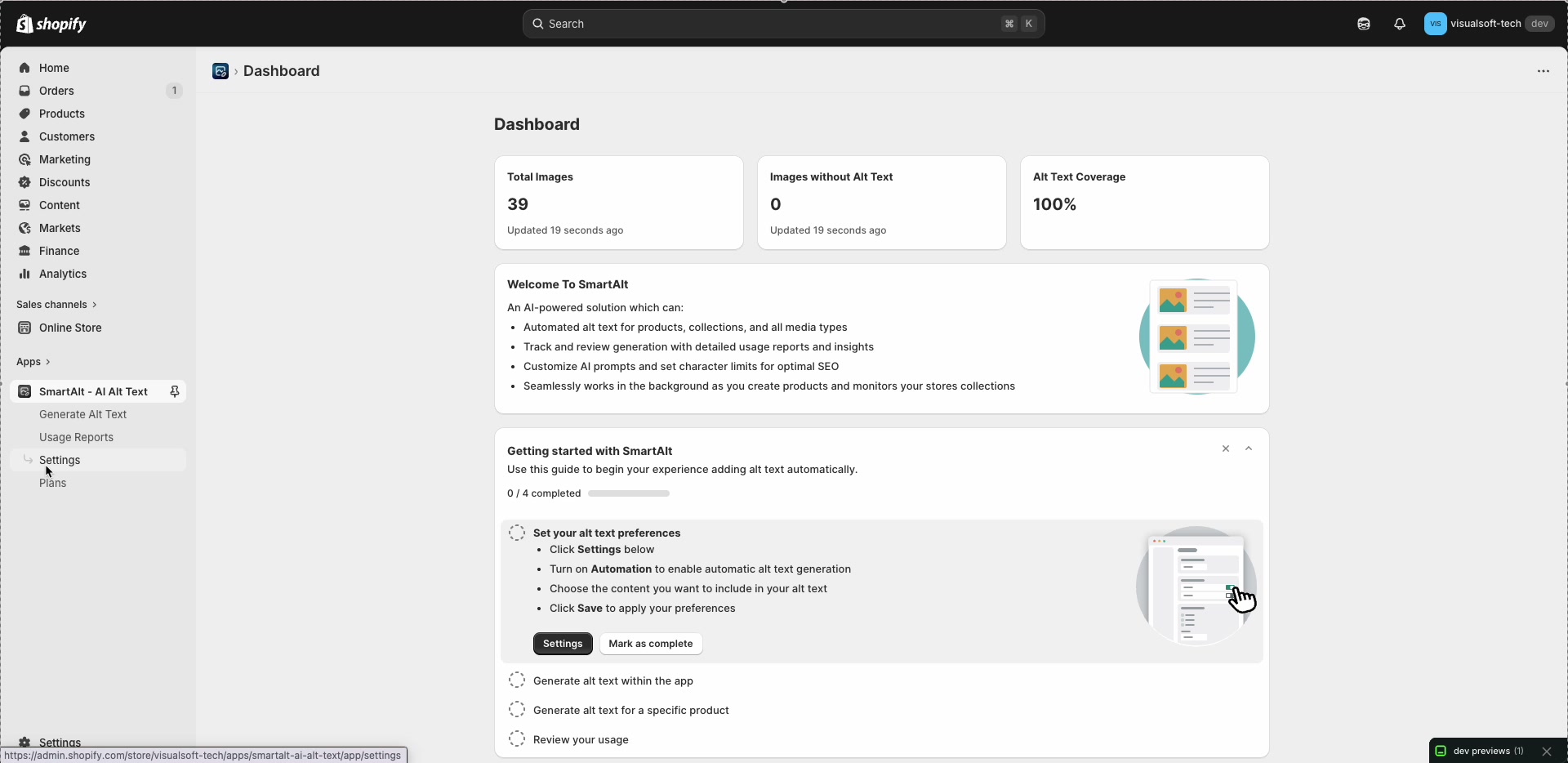
In your Shopify admin, open Apps → SmartAlt - AI Alt Text. The Dashboard gives a quick overview of your image coverage, including cards like Total Images, Images without Alt Text, and Alt Text Coverage.
2) Turn on “Specific metafields” in Settings
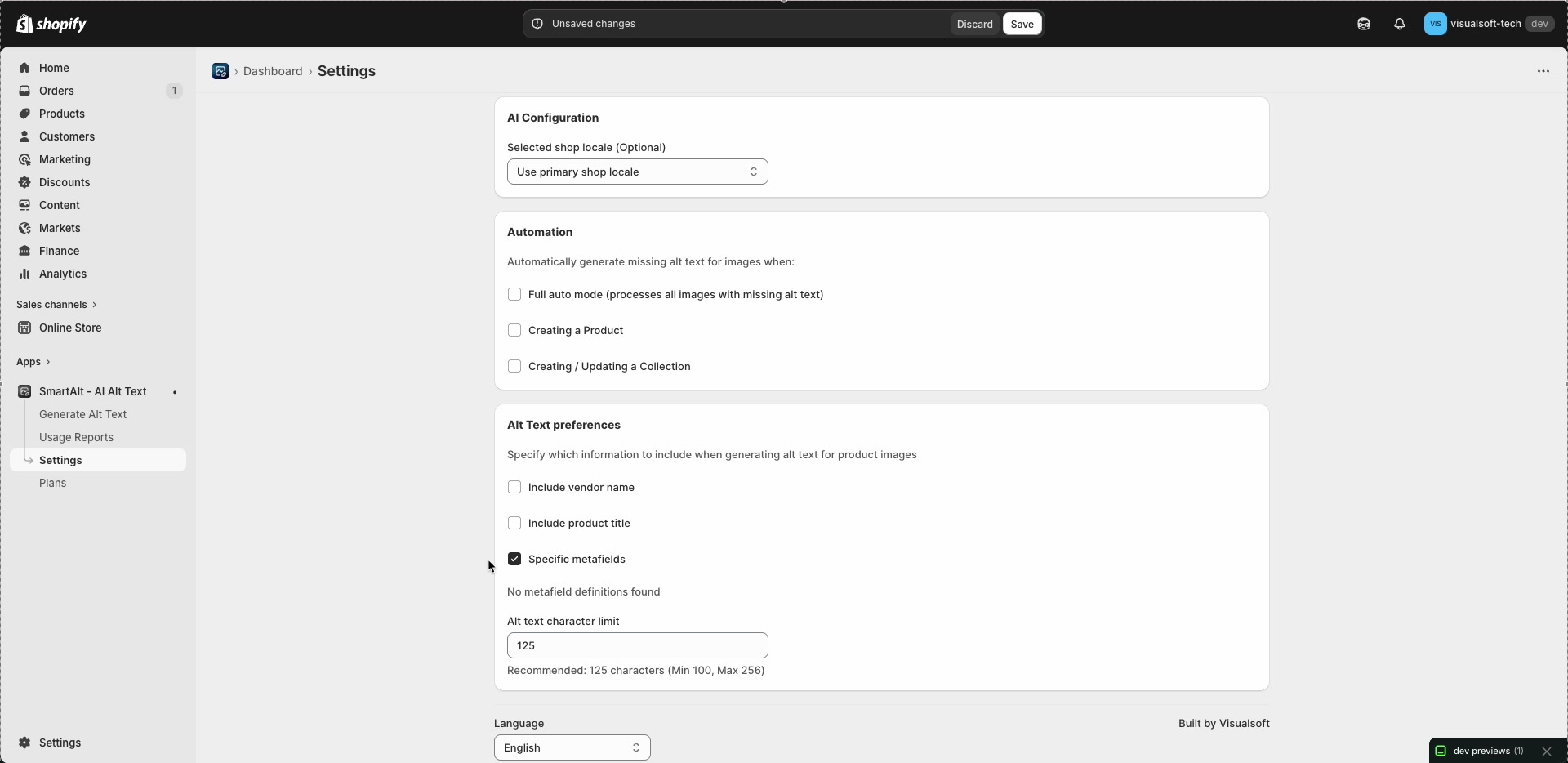
From the SmartAlt left navigation, click Settings. In Alt Text preferences, enable Specific metafields.
When enabled, SmartAlt will look for the metafield key(s) you provide and use that content as an input when generating alt text.
Go to Apps → SmartAlt - AI Alt Text → Settings.
Scroll to Alt Text preferences and tick Specific metafields.
In the metafield key field that appears under Specific metafields, enter the key for the metafield you want SmartAlt to use.
Click Save at the top of the Settings page.
3) Create metafields for each product type (Shopify)
Next, create Shopify metafields so you can store the approved words per product type/category. The workflow used in the workaround is:
- Create one metafield per product category (or product type),
- Put the words you DO want to appear in that metafield,
- Assign it on the product so SmartAlt can read it.
Recommended naming approach
Use a clear naming pattern so your keys are easy to manage. For example:
alt_text_words_baseball_capsalt_text_words_mugsalt_text_words_tshirts
4) Fill in the metafield values on products
Open a product in Shopify and set the metafield value for that product’s category/type. This is where you place the approved wording you want SmartAlt to use (for example: “stainless steel water bottle”, “navy branded baseball cap”, etc.).
5) Generate alt text using SmartAlt
Once Specific metafields is enabled and products have metafield values, generate alt text as you normally would:
- In SmartAlt, go to Generate Alt Text to run generation and review results.
- Or, from Shopify’s Products list, select products and use More actions → Apps → Manage with SmartAlt, then click Generate Alt Text.
How this “suppresses” words in practice
This approach doesn’t remove words from existing alt text automatically. Instead, it prevents unwanted words from being introduced by making the alt text input product-type specific:
- If a product type should not mention a certain term, simply don’t include it in that product type’s metafield value.
- If another product type should include it, include it only in that metafield value.
You can reuse the same metafield key/value strategy across products. If you don’t need different wording per category, use a single metafield definition and populate it consistently across all relevant products.
This usually means Shopify doesn’t yet have a product metafield definition available (or it hasn’t been created/assigned in a way SmartAlt can detect). Create the product metafield definition in Shopify first, then return to SmartAlt Settings and try again.
The workaround described here is focused on controlling wording for product images by storing approved text on the product via metafields, then letting SmartAlt use it during generation.