
How to edit with SmartAlt directly from the product catalogue
Overview
If you’re trying to organize or narrow down products inside the SmartAlt dashboard, you may notice there aren’t many filtering options available there. The recommended workaround is to filter products in Shopify first, then send the filtered selection to SmartAlt using Manage with SmartAlt.
Walkthrough: filter in Shopify, then manage with SmartAlt
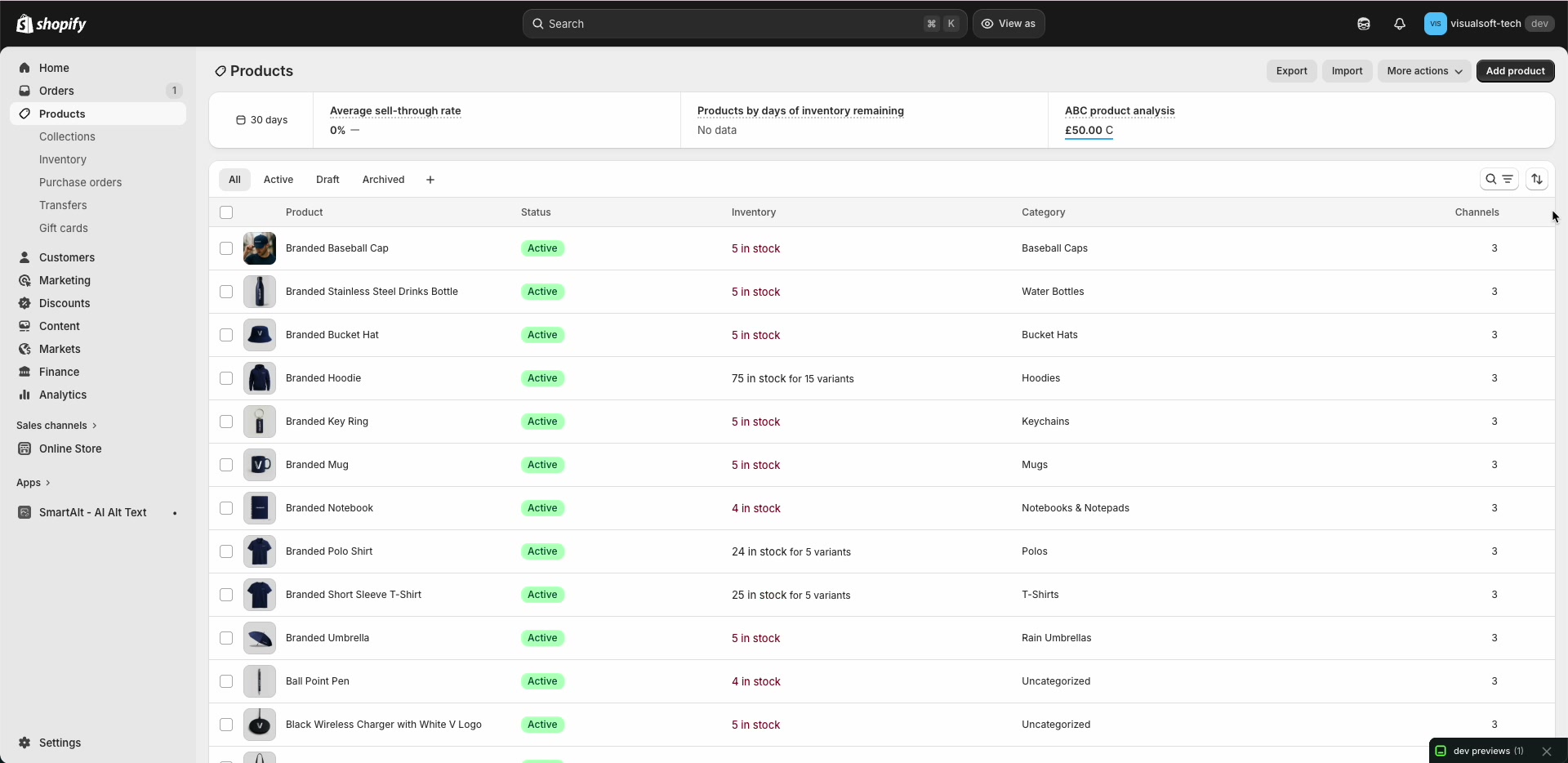
In your Shopify admin, go to Products. This is where you can view your full catalog, including columns like Status, Inventory, and Category.
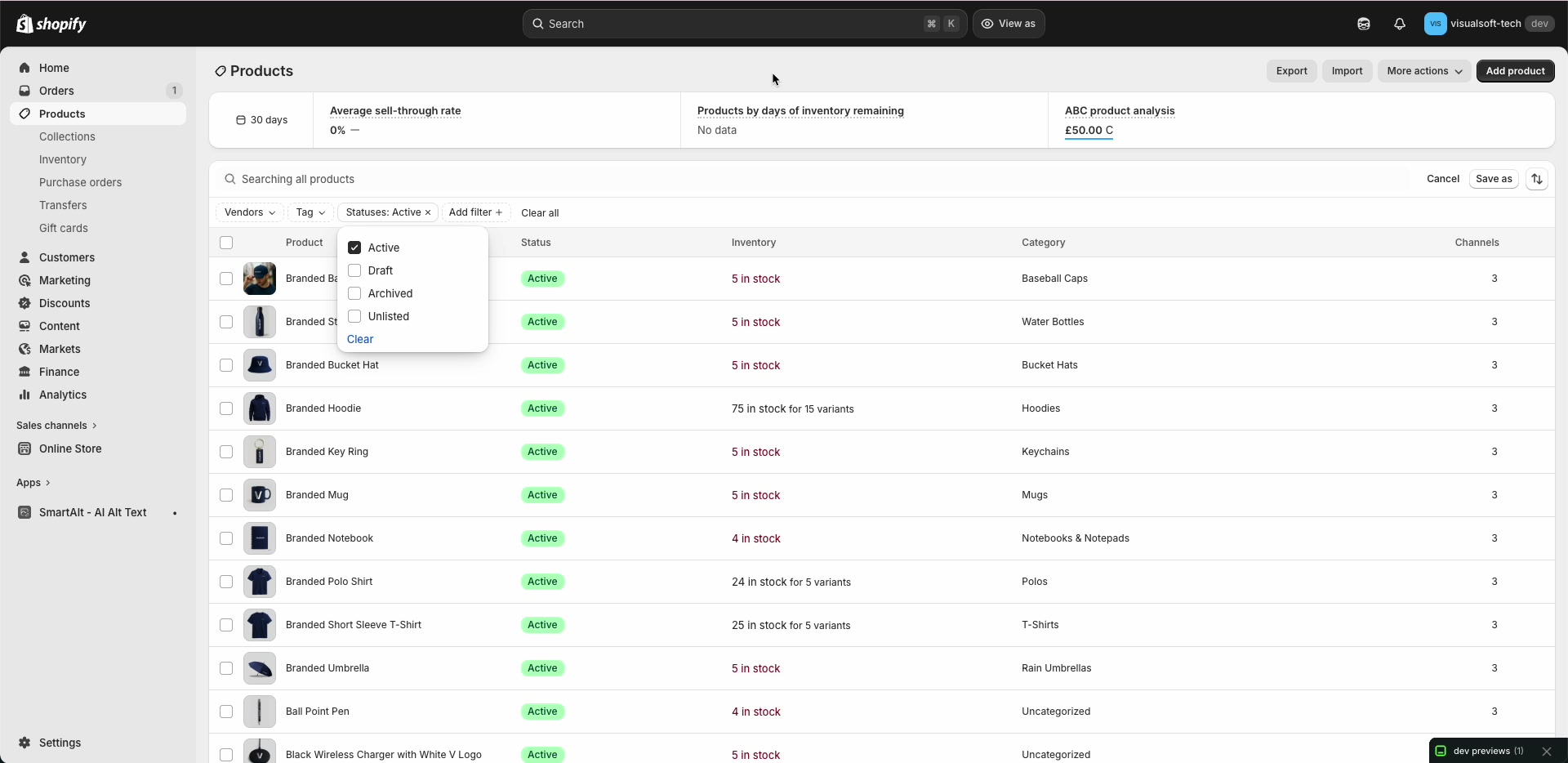
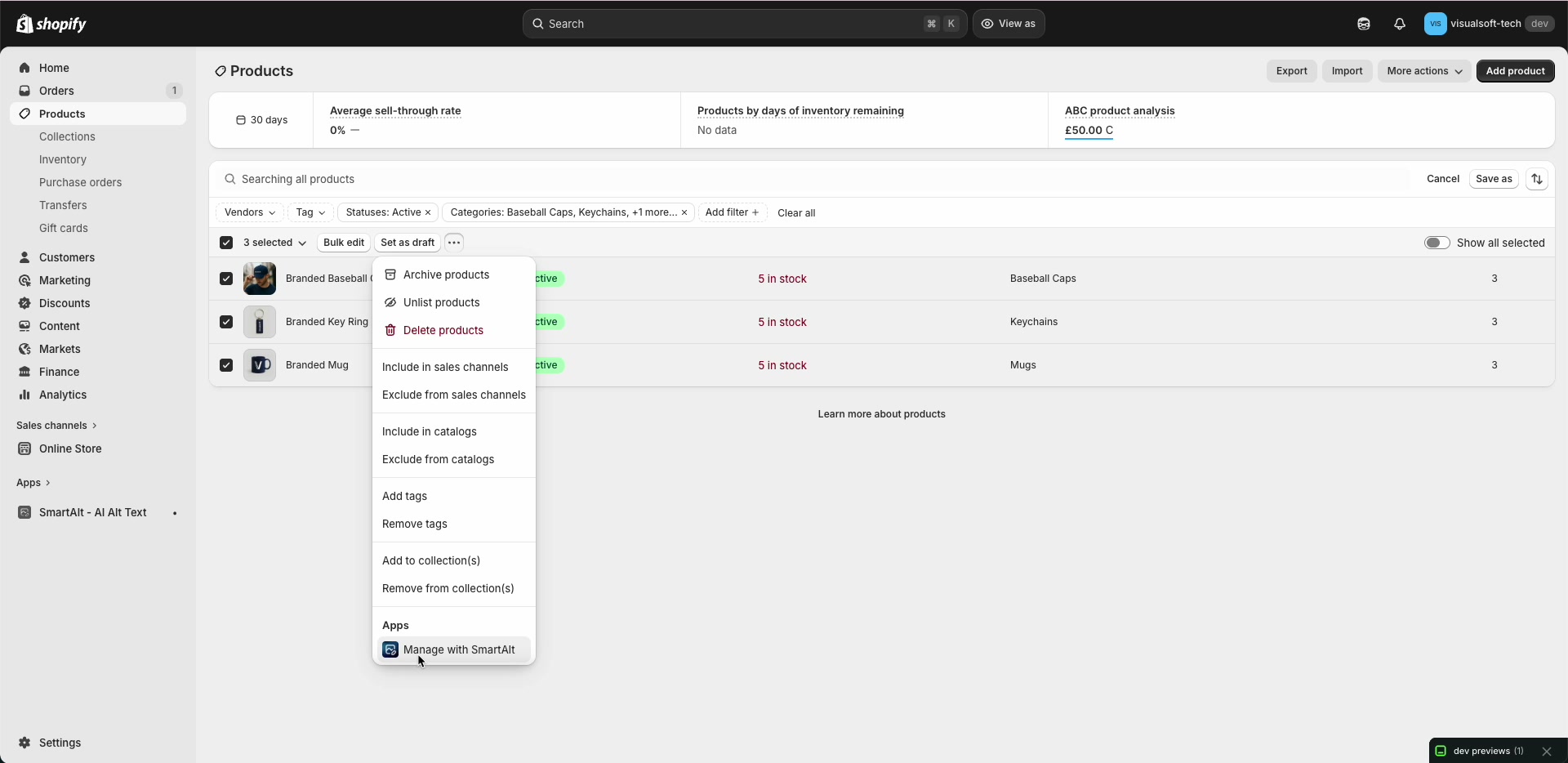
Use the filter bar to narrow the list. Open the Statuses filter and select the statuses you want (for example: Active, Draft, Archived, or Unlisted).
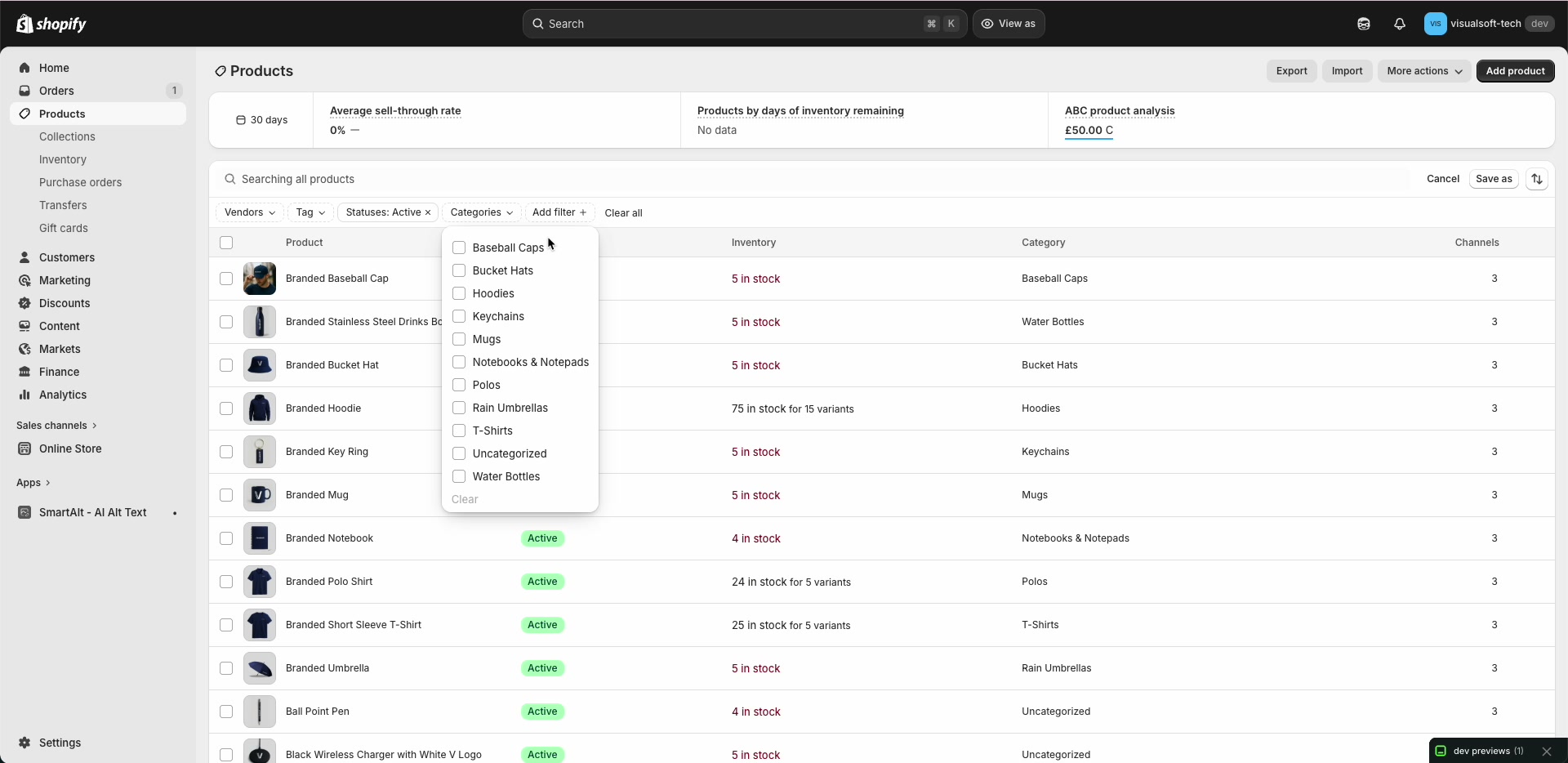
Open the Categories filter and tick one or more categories to include. Shopify will update the product list to match your selections.
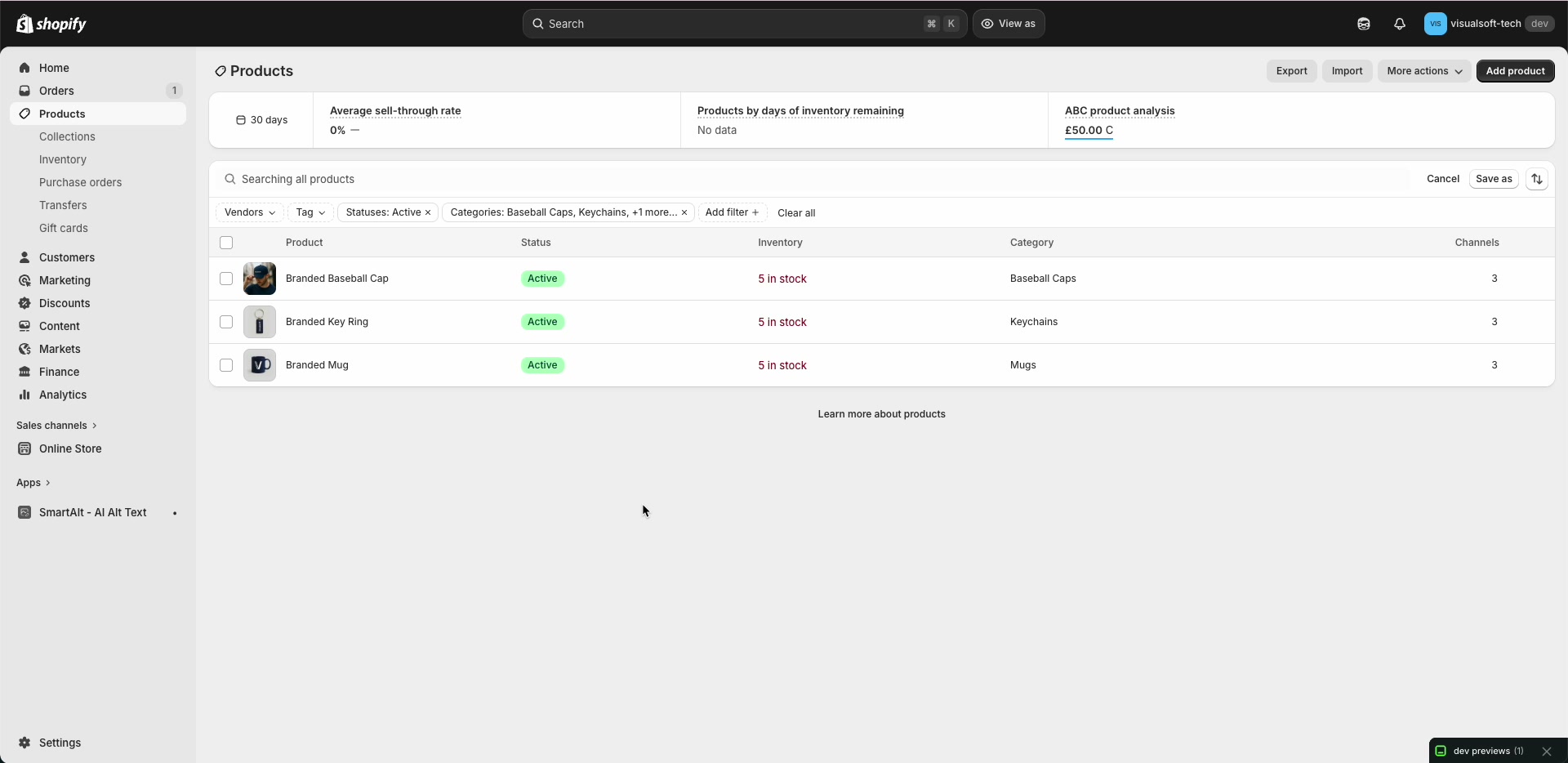
Review the list and make sure it only shows the products you want SmartAlt to manage. You should see your selected filters (for example, Statuses: Active and Categories) applied above the table.
Select the products you want to send to SmartAlt (using the checkboxes). Then open the More actions menu (the … menu) and, under Apps, choose Manage with SmartAlt.
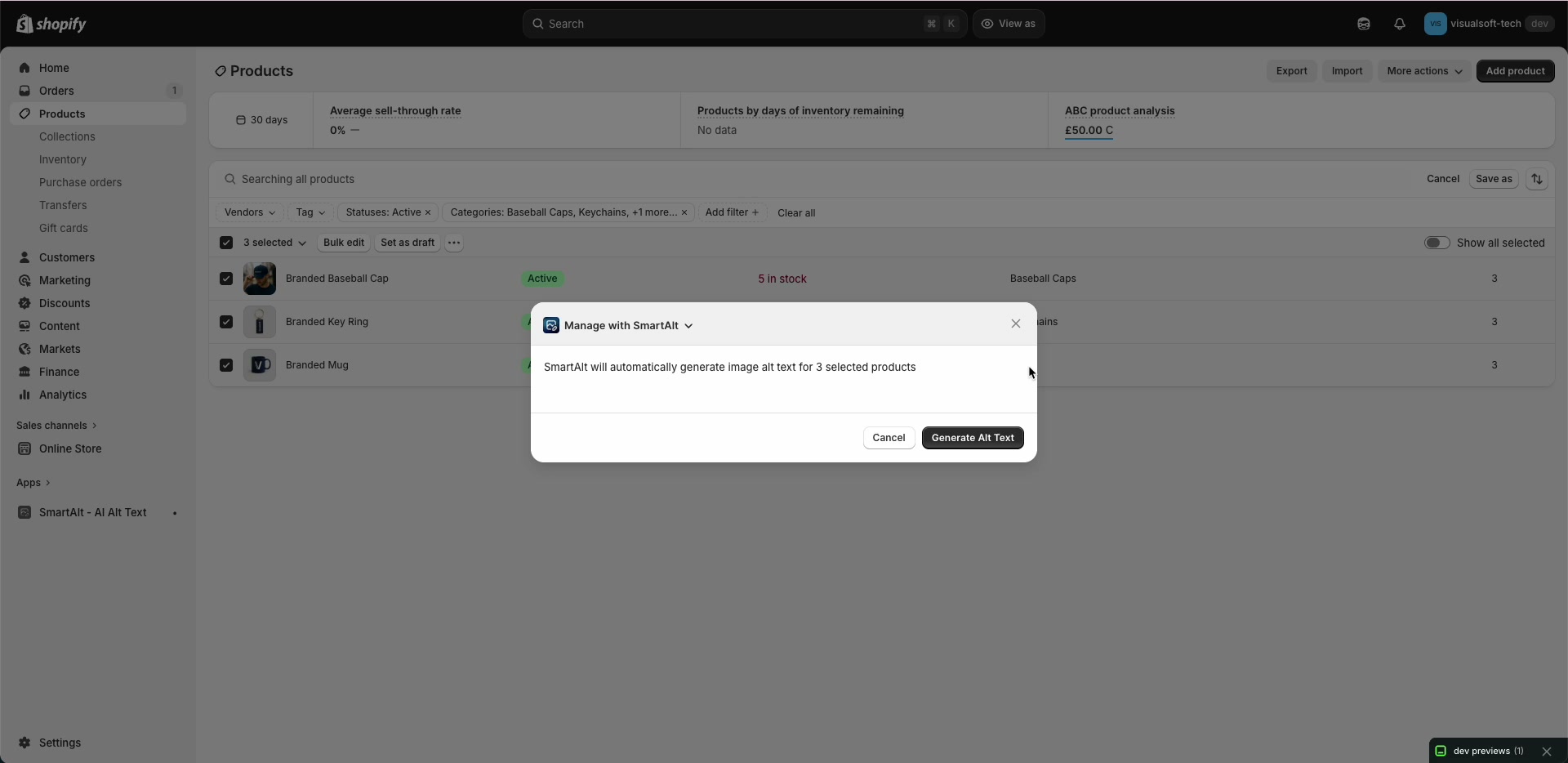
A confirmation modal opens titled Manage with SmartAlt. Review the message and click Generate Alt Text to start generating alt text for the selected products.
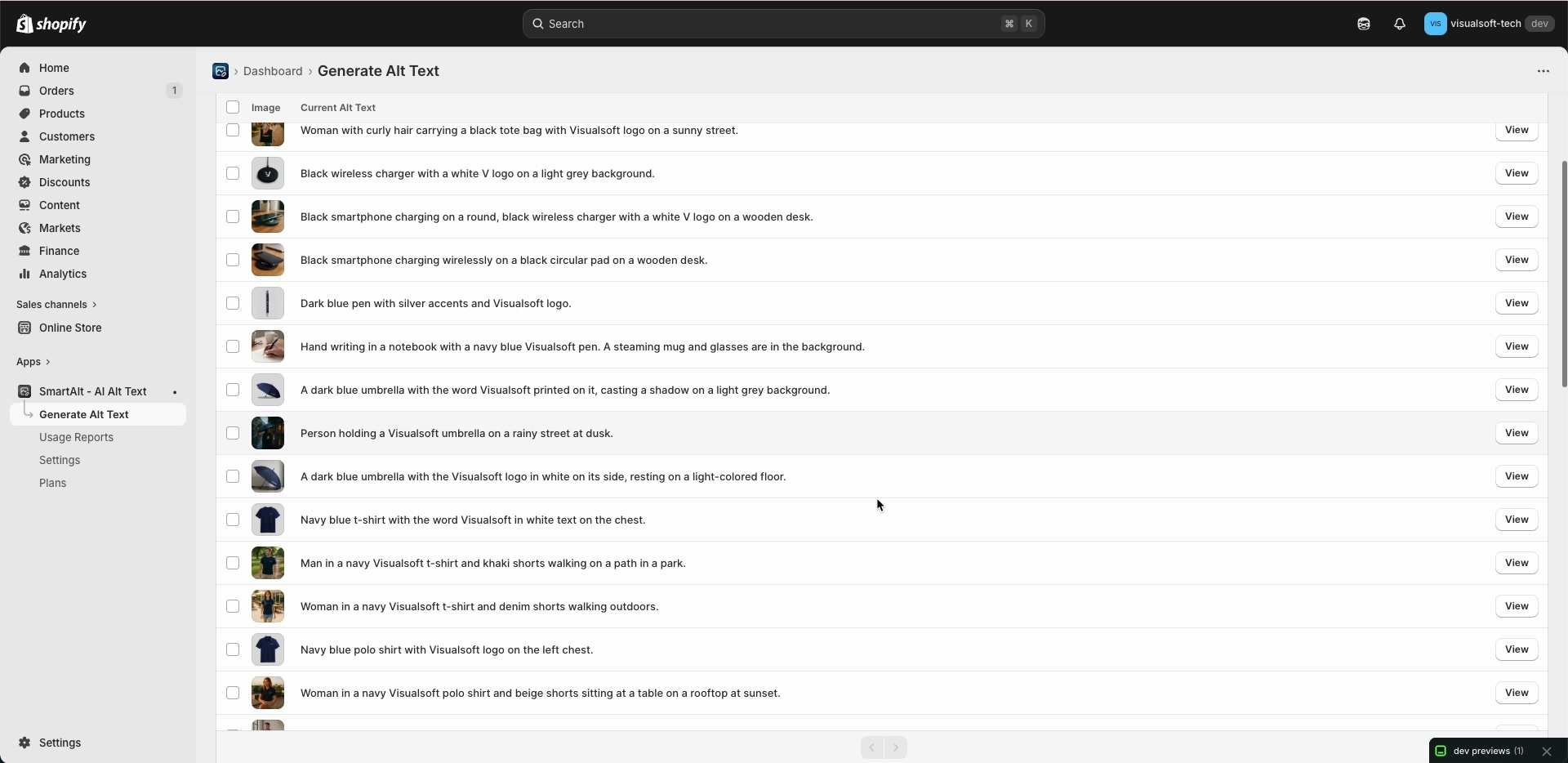
You’ll be taken to SmartAlt’s Generate Alt Text screen, where you can review generated results in a list (with an image preview and the Current Alt Text). Use the View button on a row to inspect individual items.
Why this is the best workaround
- Shopify filtering is more flexible than SmartAlt’s dashboard filters for organizing products.
- You stay in control of exactly which products are included by filtering first and then selecting only what you need.
- It’s repeatable—save filter views in Shopify for recurring SmartAlt runs (for example, specific categories or statuses).
Use the filters available on Shopify’s Products page. In the walkthrough, the selection is narrowed using Statuses and Categories. You can also use other Shopify product filters available in your store’s admin (for example, vendor or tag), then send the resulting selection to SmartAlt via Manage with SmartAlt.
No. The SmartAlt flow shown here is focused on generating image alt text. Your Shopify product organization (status, category, etc.) remains managed in Shopify.